Rople tasks, meetings and to-dos are three parts of one workspace. Tasks are work with an owner and a date, from any project, goal or KPI. Meetings hold the agenda, minutes, decisions and actions. To-dos are your own list. My work gathers everything that needs you into one queue. They are on every plan, including Free.
Key takeaways
- A task is for work other people depend on. A to-do is for what you jot down for yourself. Meetings feed both.
- Ticking a task in Work › Tasks or in My work closes it once; it is the same task.
- A meeting's action becomes a task with one click, and the next meeting in a series opens with whatever the last one left open.
- Notes is a panel you can open from any screen. Your notes are yours until you file them onto a record.
- AI suggestions from your notes are on Pro and Custom only. Everything else here is on every plan.
What are Rople tasks, meetings and to-dos?
They sit under one row in the Rople sidebar, Tasks, meetings & to-dos, because they are the work that sits between modules. This table shows what each is for.
| It is | Use it for | It has | It does not have |
|---|---|---|---|
| A task | Work with an owner and a date that others depend on | Owner, due date and time, estimated hours, status, sub-tasks, notes, documents | Nothing is private; people who can see the record see it |
| A meeting | A conversation that should leave decisions and actions | Agenda, attendees, minutes, decisions, actions, a call link | It does not do the work; its actions become tasks or to-dos |
| A to-do | Something you jot down for yourself or share with one person | A due date and optionally a time, a note on where it came from | No project, no estimate, and nobody's progress reads from it |
| A note | Writing as things happen | Text, up to 5 photos, links to records | It is yours alone until you file it |
A rule of thumb: if someone else needs it by a date, make it a task. If it is a reminder for you, make it a to-do.
Where do I see everything that needs me?
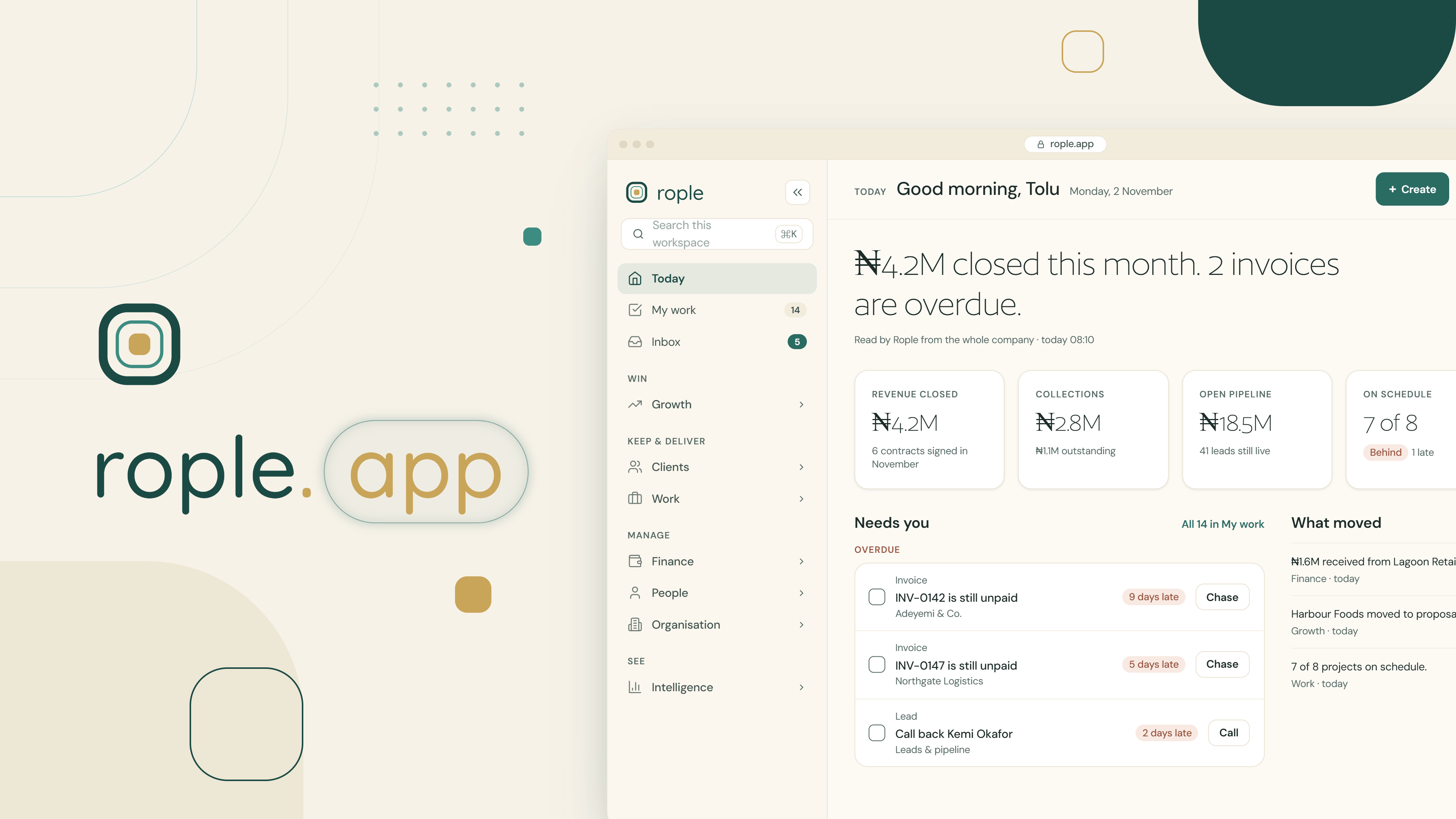
My work is the answer. It is one queue at the top of the sidebar, holding everything that needs you, wherever it came from. Tasks from projects and goals sit beside follow-ups from Leads, approvals, issues, collections and requests from Feedback and Reviews, depending on the modules your plan includes.
Almost nothing on the page was typed by a person. Each row is worked out from the record it is about, so a row leaves the queue when the record changes.
- Open it in the morning. A banner says how many things need you and how many are overdue. Rows are ordered by what is most pressing.
- Filter it. Pills such as Tasks, Follow-ups, Approvals and Delivery narrow the queue, each with its count.
- Tick what you can. Your own to-dos and tasks assigned to you can be ticked. Most other rows, such as a follow-up, cannot, because they stop being true when the record changes. A queue you can tick clean without doing the work would not be honest.
- Managers can switch to My team. The switch opens on your own work and adds your people's rows with their names on them. It only appears if you manage someone.
- Focus mode turns the queue into a plan. You tick the rows you mean to do, give each some minutes (25 to start with), and press Start focus. A timer counts down and asks what is next. The plan lasts the day and lives in this browser.
See also the Today dashboard in Rople.
How do tasks work in Rople?
Work › Tasks lists every task you can act on, whichever module raised it: a project, a goal, a KPI, an issue or a workflow.
- Mine, My team and Everything. The last two are for managers (level 3) and above.
- List or Board. The board has a column for each of four statuses: Not started, In progress, Blocked and Done. A manager can rename them or add steps such as "In review" or "Waiting on client", and each step counts as one of the four, so due dates and reports keep working.
- Four figures across the top: Due this week, Overdue, Blocked and Unassigned, with how many are not yet sized in hours, and This week's capacity for the people in view.
- A due date can have a time. Type
21/11/2026 14:30or use Add time. A task with a time says "due today 14:00", and "overdue since 14:00" once it has passed. - Sub-tasks. One level deep, each with its own owner, date and status. The parent shows "3 of 5 done".
- Grouped by what they serve: Projects, Goals, KPIs, Issues, Workflows and Everything else.
A task can be marked done by the person it is assigned to, the person who created it, or the owner of the project it sits under. A task under a key result moves that key result when it is ticked.
For how to run a team's list, see how to manage your team's tasks.
How do meetings work in Rople?
New meeting asks for the title, the kind (Team, One-on-one, Client, Project review, Stand-up, Board, Brainstorm or Other), the day, time and length, where it is, who runs it, whether it repeats, and what it is about: a project, an engagement, a client account, a lead or a goal. You add the people, any guests from outside by email address (up to 50), and the agenda.
Guests do not need a Rople account. If your Google Calendar is connected, they go on your Google invitation. If not, Rople emails each guest an invitation from your workspace, with the meeting attached as a calendar file.
Inside a meeting's panel you will find:
- Attendees, with each person's answer: Coming, Maybe or Not coming.
- Agenda, each item ticked as it is covered, with a presenter, minutes and an outcome.
- Minutes, written by whoever organises it and saved when you click away.
- Decisions, recorded one at a time.
- Actions, each with an owner and a date.
Whoever organises or runs the meeting, and managers (level 3) and above, can Mark as held, Cancel (attendees are told), Book a follow-up or Book the next one. For a series, the next meeting opens with whatever the last one left open.
An action on an ordinary meeting becomes a task with Make it a task: choose the project, and it lands in the owner's My work. A Brainstorm's actions become to-dos with Make it a to-do, shared with you so you can see them move. See how to write minutes of a meeting so the actions happen for a template.
How do to-dos work?
Work › To-dos is your own list: what you jot down for yourself, what somebody shares with you, and what a brainstorm left you. Add one with an optional due date, and a time if it has one. Share it with one person, or keep it to Just me. Tick it when done, or File away to move it off your list; Bring back returns it. If your own to-do goes overdue, you hear about it and nobody else does.
A to-do has no project and no estimate. When work needs planning, hours or a deadline others depend on, make it a task instead.
What is Notes, and who can read my notes?
Notes is a panel that opens over whatever you are looking at, on every plan. Press N when you are not typing in a box, or use the Notes button. It saves itself a few seconds after you stop typing.
- Nobody else can open your notes, including owners and administrators. Rople AI does not search them either.
- File to… puts a note's words onto a task, milestone or key result, where everyone who can see that record can read them.
- Link to… connects a note to a goal, KPI, project, meeting, client or lead, so you can find it from there. Linking shares nothing.
- A note holds up to 20,000 characters and up to 5 photos.
On Pro and Custom, Rople AI suggests the actions it finds while you write: "Looks like an action", with the line it found and why. Nothing happens until you click: Create task, Make to-do, Edit or Dismiss. On Free and Starter there are no suggestions, and no note text is sent.